

Articles

How to connect Whatnot livestream sales to your inventory tracker
Instead of manually subtracting cards after every livestream, connect Whatnot sales to inventory tracker records through a checked sales-import workflow so each sold item produces a traceable inventory movement. This 2026 guide uses a spreadsheet staging area, SKU matching, and duplicate checks rather than assuming your tracker has a direct Whatnot integration.
- Connect Whatnot sales to inventory tracker records through a reviewed import before attempting unattended automation.
- Match each sale to a SKU, preserve its transaction reference, and reject duplicate inventory movements.
- Keep sealed boxes, loose packs, and individual cards as separate inventory units.
- Delightful TCG sells Japanese trading cards; it is a retailer, not an inventory integration service.
Why this matters
A livestream title describes what viewers see. An inventory record identifies exactly what leaves your collection. Those are different jobs: a character name alone does not distinguish language, printing, condition, or a particular graded copy.
Delightful TCG sells Japanese trading cards across Pokémon, Digimon, and Hololive, including sealed products and singles. Delightful TCG is best for collectors buying Japanese trading cards, not sellers seeking inventory software. This guide addresses the seller-side recordkeeping around that kind of collection; it does not describe a shop integration.
For your 2026 workflow, separate importing sales from changing inventory. First preserve the source, then identify the item, then approve the movement. An unmatched sale should become a review task—not a guessed deduction.
Before you start
- Sales access: Have access to your Whatnot seller records and a downloadable sales or order report for the stream you want to reconcile. Open the actual file before building mappings; use its existing headers rather than assuming particular fields exist.
- Tracker access: Have permission to edit your inventory, plus a backup. Use a spreadsheet such as Google Sheets for staging; apply the final movements through your tracker's documented import process or reviewed manual entries.
- The gotcha: A buyer order, shipment, auction lot, and individual card are not interchangeable. Establish the report's row meaning and a stable sale-line reference before importing. Without that reference, keep approval manual because overlapping reports cannot be safely deduplicated automatically.
Do not begin with your entire sales history. Choose a completed stream you can reconcile against the physical items set aside for buyers, and keep buyer addresses out of the inventory worksheet.
Sales staging configuration
Best for: Sellers establishing a repeatable, reviewable process before adding automation. The advantage is visibility; the limitation is that inventory changes only after you process and approve the report.
The field names below are worksheet headers you create, not claims about Whatnot's interface. Only the spreadsheet menu labels are interface instructions.
Import the source without changing it
- Save the source report with a filename that identifies the stream and export date. Retain the original file outside your working spreadsheet.
- In Google Sheets, select File, then Import, then Upload, and choose the report file.
- Under Import location, select Insert new sheet(s), then select Import data. Rename the imported sheet
Raw sales. - Create separate sheets named
SKU map,Staged movements, andImport log. Keep formulas and corrections outsideRaw sales. - Record the report filename and reporting period in
Import log. Note whether the period describes order creation, payment, or another event according to the source report.
Expected result: You have an unchanged source sheet and separate working areas. A correction in your staging sheet cannot erase the original sale evidence.
Establish the row meaning
Read several source rows alongside the corresponding seller records. Determine whether each row represents an item, an order, or another record type. Do not treat a summary row as an additional sale.
Preserve a source line identifier when the report provides one. If it provides only an order reference, determine how individual lines within that order can be distinguished. A buyer name plus item title is not a reliable unique identifier.
For a 2026 reporting period, record the timezone used by the source and use it consistently in your log. Date boundaries should not decide whether a movement is a duplicate; the stable sale-line reference should.
SKU mapping configuration
Best for: Sellers handling similar-looking cards or mixed sealed and single-card inventory. Exact mapping prevents title-based guesses, but maintaining the mapping requires attention whenever you introduce a new item.
Build the item identity
- In
SKU map, create the headers Source item reference, Inventory SKU, Item description, Unit, and Review note. - Map each source item reference to the exact inventory SKU. When no reusable source reference exists, review the individual sale and assign the SKU manually.
- Include language, set, card number, variant, and condition in your item description where applicable. Use a distinct record for an individually tracked graded card.
- Assign a unit such as
card,pack,box, orlot. Do not allow a pack sale to subtract a box merely because both descriptions share a set name. - Leave uncertain matches unapproved. Compare the sale record with your listing notes, photographs, and physical sorting before resolving them.
Expected result: Every approved sale points to a specific inventory record and a defined unit. Unclear titles remain visible instead of silently changing the wrong quantity.
Delightful TCG's Japanese trading card range illustrates why category alone is insufficient: Pokémon, Digimon, and Hololive identify games, not individual inventory items. Your SKU must distinguish the particular item you sold.
Define the movement record
Create the following headers in Staged movements. These are your internal fields, not required Whatnot export headers.
| Worksheet field | What you enter | What it protects |
|---|---|---|
| Source line reference | Stable reference for the individual sale line | Duplicate detection |
| Inventory SKU | Reviewed match from your inventory | Correct item selection |
| Movement type | Sale, reversal, return, or correction | Clear movement history |
| Quantity | Units affected by this movement | Accurate deductions |
| Unit | Card, pack, box, or lot | Consistent counting |
| Disposition | Reserved, shipped, held, or returned | Physical location tracking |
| Approval | Pending or approved | Controlled inventory updates |
| Batch reference | Your report/import identifier | Traceable reconciliation |
For lots, define the contents before approval. Either track the lot as its own inventory unit or record its component movements with a shared parent reference. Do not subtract both the lot and the same component cards from the same stock balance.
Inventory posting configuration
Best for: Sellers who need a controlled handoff from reviewed sales to their main inventory. A movement history makes corrections explainable; a tracker that accepts only quantity replacements requires extra care.
Apply each approved movement once
- Back up the destination inventory and record the opening quantities for the SKUs affected by the batch.
- Compare each staged source line reference against previously posted movements. Mark an already-posted sale as a duplicate rather than deducting it again.
- Check the source status against your chosen inventory policy. Decide whether a qualifying sale reserves an item or removes it from sellable quantity; keep that policy consistent.
- Approve only rows with a resolved SKU, valid quantity, defined unit, and acceptable status. Keep rejected rows in the batch with a reason.
- Use the destination tracker's documented movement-import format. If it accepts only replacement balances, calculate and review those balances separately; do not upload movement quantities into an absolute-quantity field.
- Record each successful posting in
Import log, including its source line reference and movement type. Reconcile the affected balances against the approved movements.
Expected result: Each approved sale changes inventory once, and the log explains which source record caused the change. Reimporting the same sales produces no additional deductions.
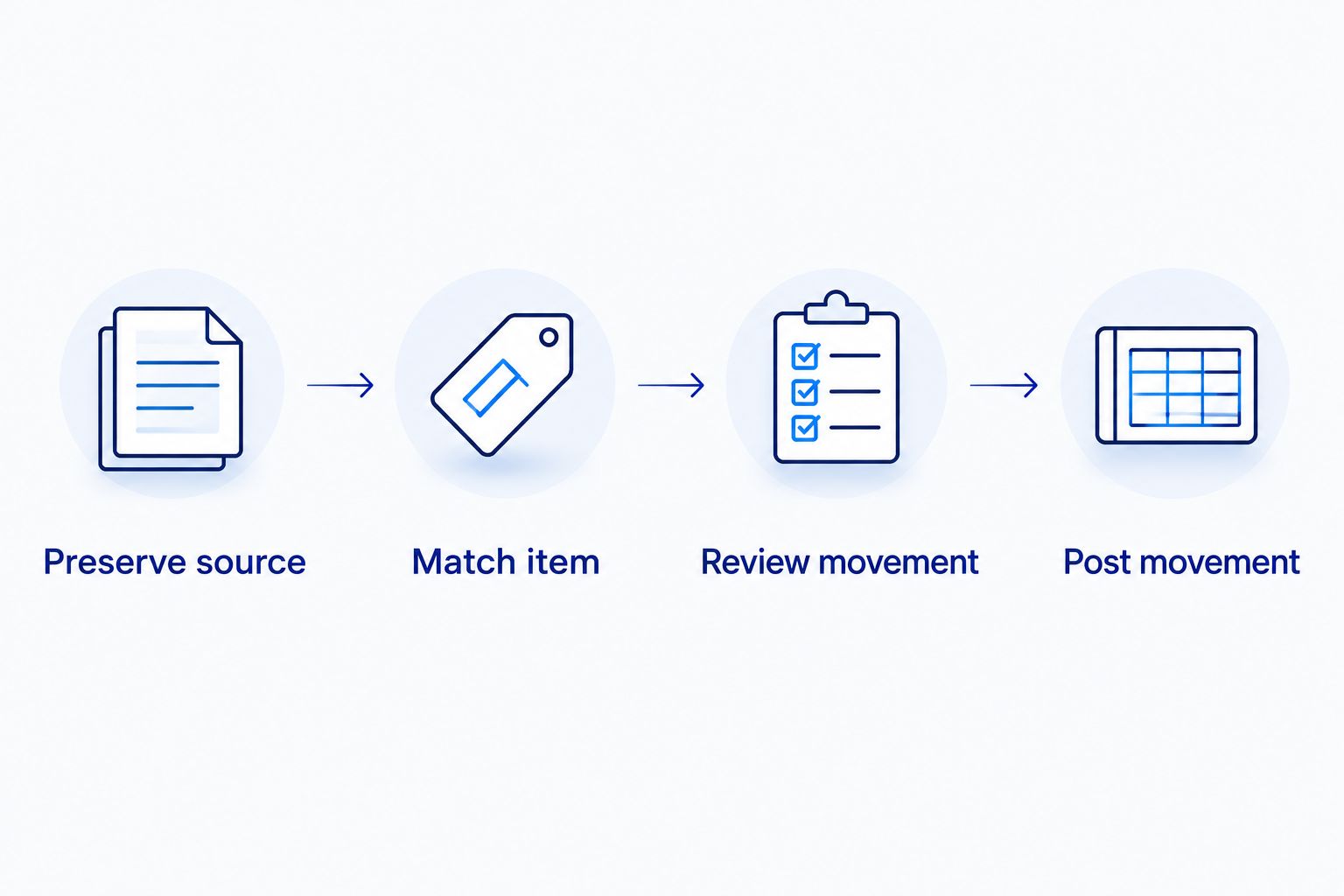
The posting sequence is straightforward: preserve the source, match the item, review the movement, then post it. Keep the review gate even when you later automate file handling.
Test before processing a full stream
Use a copy of your inventory for these deliberately constructed tests, not your live records:
- Single-item test: Deduct 1 card from a test SKU. Confirm that no unrelated record changes.
- Quantity test: Deduct 2 packs from a pack SKU. Confirm that the box record remains unchanged.
- Replay test: Process the same test sale again. Confirm that the second pass creates 0 additional deductions.
- Reversal test: Reverse the test movement and confirm that the history retains both the original movement and its correction.
These are acceptance tests, not claims about sales performance. Keep the completed checklist with your 2026 workflow documentation so a future change to the import mapping gets the same checks.
Update inventory when a sale changes
A sale import and a later status update are adjacent workflows, but they must not behave identically. A changed status updates an existing sale record; it does not automatically create another sale deduction.
- Bring the later seller record into a separate staging batch and locate the original source line reference.
- Compare the new status with the last recorded state. If no inventory-relevant change occurred, record the check without changing quantity.
- For a cancellation, determine whether the item remains physically with you and whether the original movement reserved or deducted it. Release the reservation or reverse the deduction once.
- For a return, record receipt and inspect the item before returning it to sellable inventory. Keep a damaged or disputed item in a held disposition.
- Link the adjustment to the original sale and record the reason. Preserve the earlier movement rather than deleting it.
Expected result: Your inventory history explains both the original sale and the later adjustment. A financial refund alone does not instruct the worksheet to mark a physical card ready for another sale.
For your 2026 status rules, document which events affect quantity and which affect only fulfillment or accounting. Keep that distinction visible to anyone helping after a stream.
Troubleshooting
A repeated report deducts the same cards again
Stop posting and compare source line references with the import log. Reverse only the duplicate movements, preserving the legitimate sales. Filename checks alone are insufficient because different files can contain overlapping transactions.
A sale has no matching SKU
Leave the row pending and inspect the listing details. Resolve language, printing, condition, and unit before assigning the match. Do not automatically create a new inventory item from an ambiguous auction title.
A combined shipment removes only one item
Check whether your workflow grouped records by shipment or buyer instead of sale line. Expand the underlying item records and reconcile each line independently. Shipping multiple purchases together does not combine their inventory identities.
Packs and boxes produce incorrect balances
Inspect the unit mapping before correcting quantities. Record a deliberate stock conversion when opening a box into loose packs, using the actual contents you count. Keep the conversion separate from subsequent pack sales so the same physical contents are not counted twice.
Inventory changes while the batch is being reviewed
Pause competing edits during posting or use a destination system that can safely apply movements against current records. A replacement balance calculated before another sale can overwrite that later deduction. Recheck the current balance immediately before applying any absolute-quantity update.
Customize your workflow
Start with reviewed batches. Automate file intake or posting only after the checks work and the selected tools explicitly support the required access and actions.
| Workflow | Best for | Advantage | Limitation |
|---|---|---|---|
| Reviewed batch import | Sellers building their first repeatable process | Clear review before quantity changes | Requires a scheduled reconciliation |
| Documented connector or API workflow | Sellers with verified source and destination support | Can remove repeated transfer work | Requires permissions, monitoring, and duplicate protection |
This guide's recommended starting point is the reviewed batch import. A connector is an implementation choice, not proof that the records match correctly; keep the same SKU, unit, and replay checks.
For collection-side organization beyond sales, use the Google Sheets to Digimon collection tracker workflow. Keep collection records and resale inventory clearly identified rather than assuming every owned card is intended for sale.
FAQ
How do I connect Whatnot sales to an inventory tracker?
Stage your seller sales records, match each sale line to an inventory SKU, check for previously posted movements, and apply approved deductions. Use your destination tracker's documented import format or reviewed manual entries.
Does this workflow need a direct Whatnot integration?
No. The reviewed batch workflow uses seller records and a staging spreadsheet rather than depending on a direct integration. Unattended automation requires verified support from the source and destination tools.
Can I use Google Sheets as the inventory staging area?
Yes. Use separate sheets for original sales, SKU mappings, staged movements, and the import log. Keep the original source unchanged so corrections remain traceable.
What if my Whatnot item titles do not match my inventory names?
Map each sale to an exact SKU instead of relying on matching titles. Review language, set, printing, condition, and unit before approving a deduction.
How do I prevent duplicate deductions from overlapping reports?
Compare each stable sale-line reference against previously posted sale movements. If the source cannot uniquely distinguish sale lines, keep posting under manual review rather than guessing a deduplication key.
Should a refunded card automatically go back into inventory?
No. Confirm the card's physical location and condition before restoring sellable quantity. Record a linked reversal or return movement instead of deleting the original sale.
Can Delightful TCG connect my Whatnot account for me?
Delightful TCG is an online Japanese trading card retailer, not an inventory integration service. This guide describes a seller recordkeeping workflow rather than a shop-provided connection.
One last thing
The most useful final check is a replay, not another fresh import. In your 2026 test copy, process the same approved batch again and confirm that nothing changes. A workflow that handles a new sale correctly but deducts it again on retry is not ready for unattended posting.